
Let’s get started! Registering with Coinbase will take you about 5 minutes, so even though this article may seem a little long, don’t worry 😉 it will be quick.
You can go directly to the Coinbase website and register

But if you use this link generated by my account, you will register and once you transfer $100 or €100, you will receive an extra $10/€10 totally free 😛 Yes, it’s just a bonus they use to incentivize their affiliate system, so… Who’s going to say no to an extra $10 for free?

The process is simple. Enter your first and last name, an email address, and a password. Complete the reCAPTCHA and accept the terms and conditions:
A notice about the new GDPR law will appear. Accept it by clicking Next:

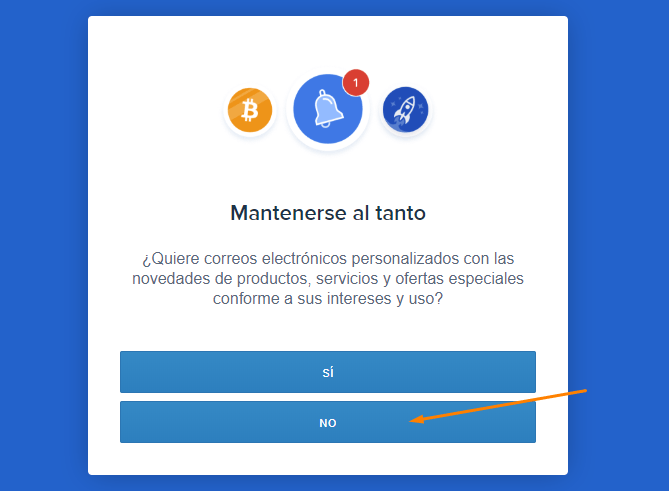
A message will appear about sending us advertising. I recommend that you select “No,” as they can be very annoying:
At this point, they will send us a confirmation email. Open the email they sent you and click on the link to verify your account and ensure that you have access to that email:

This will take you to the section where you add a phone number. This part is VERY IMPORTANT. Coinbase has a security system that will often send a confirmation message to your phone in order to log into your account, so be sure to enter a mobile phone number that you have access to at all times:
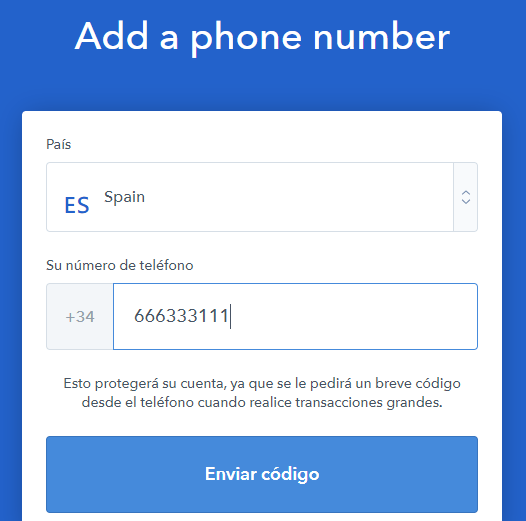
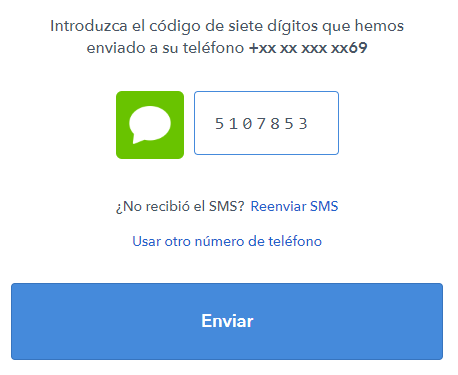
You will be sent a 7-digit code that you must enter on the next screen:
That’s it! We are now on our main dashboard. As you can see, there are 5 sections and the texts are mixed in English/Spanish: Dashboard, Buy/Sell, Accounts, Tools, and Settings.
Just below, we can see the different cryptocurrencies that Coinbase manages. Currently, these are Bitcoin, Bitcoin Cash, Ethereum, and Litecoin.
In the widgets below, we can see the steps we still need to complete (on the right) and our portfolio (everything is at 0, of course).
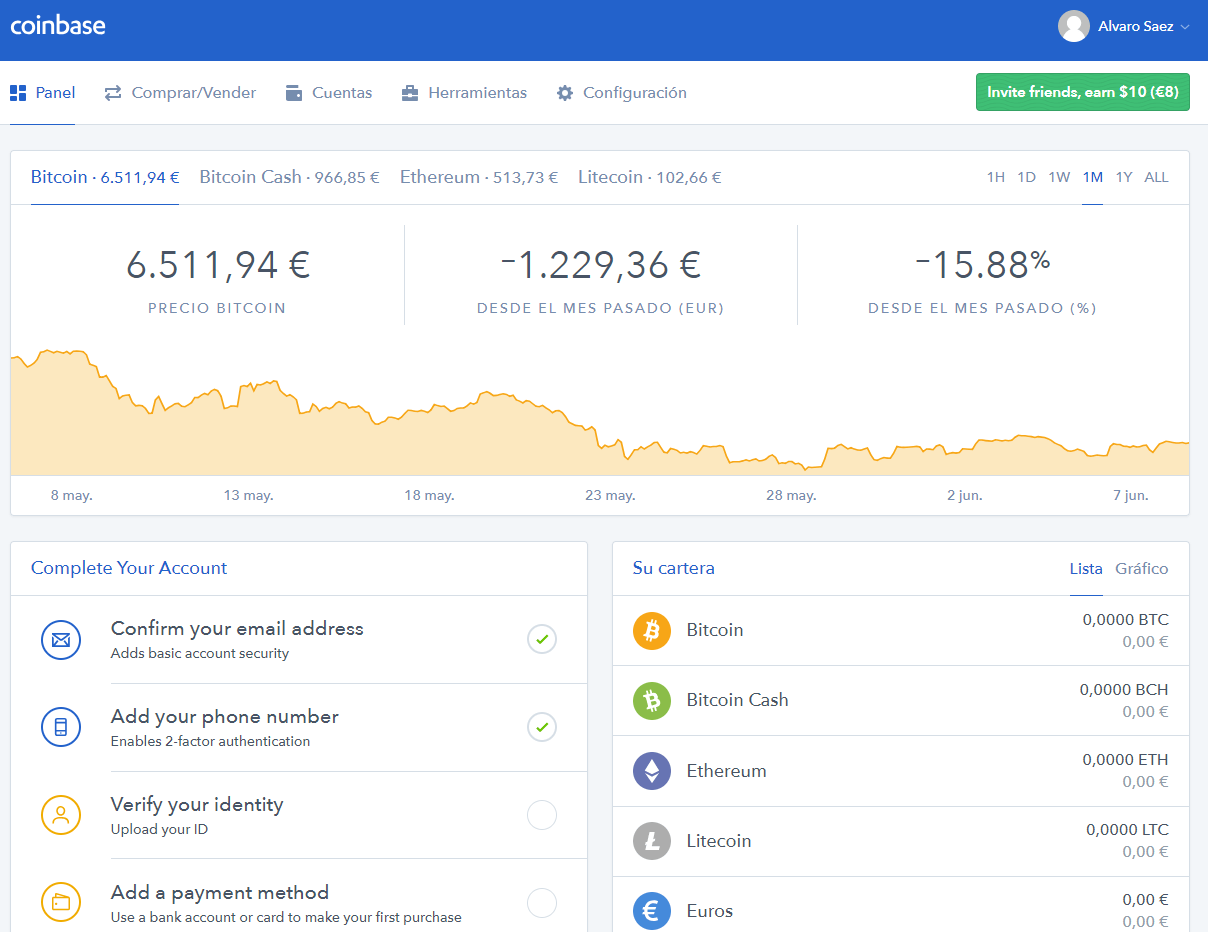
Continuing with the registration and verification process, we will click on the “Verify your identity” section:

We will have three types of verification: passport, driver’s license, and ID card or identification card:

In my case, I selected to verify through my “driver’s license,” since I had it with me. It then allows us to confirm the document in three ways:
1. If we have a webcam and good lighting, it can be captured on the spot through the PC/laptop camera.
2.If we are registering from a mobile phone, we can capture it from the device.
3.Or if we have scanned the document on our PC, we can use the “upload file” option.
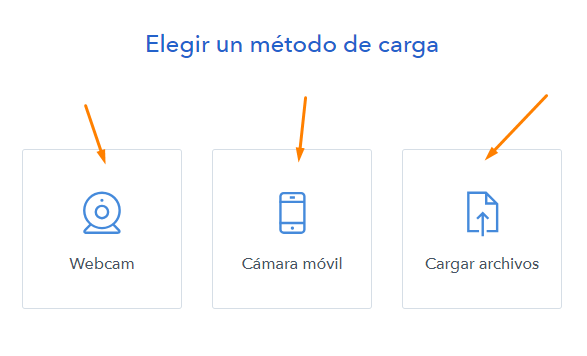
In my case, as I have a webcam, I selected this option and was asked for permission to enable the use of the camera. First, I focused on the front so that all the numbers were clearly visible and clicked “accept”:
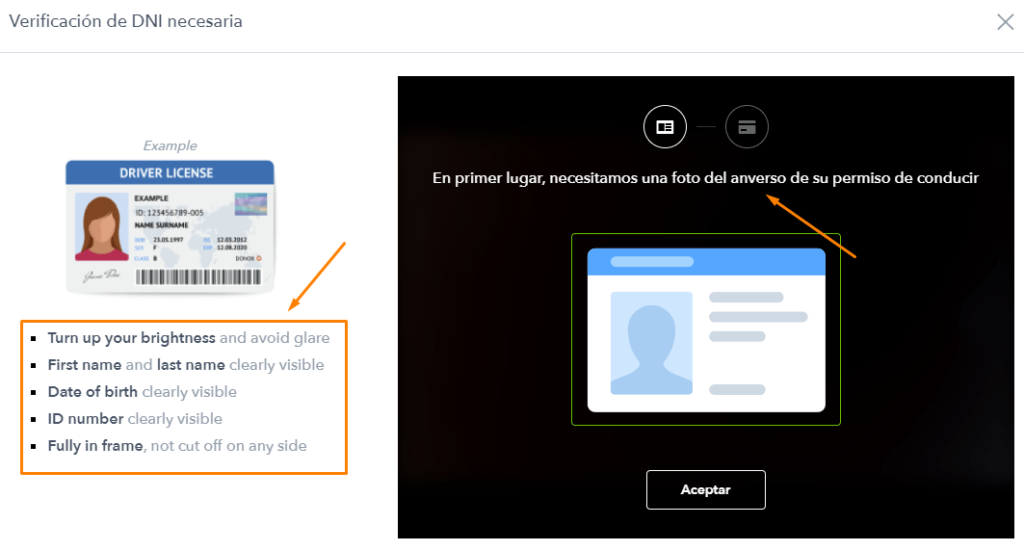
And I did the same with the back of my driver’s license:
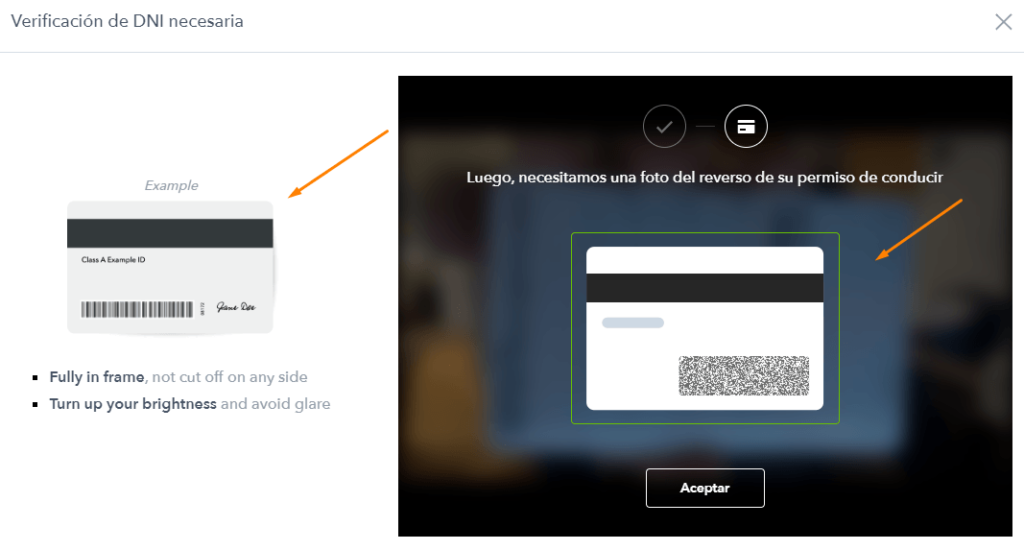
For a few seconds, they will be verifying (they have a team working live to verify the documents) that the image and digits are clear and that there is nothing wrong or suspicious:

And that’s it, we’ve verified our identity and the account is in our name!

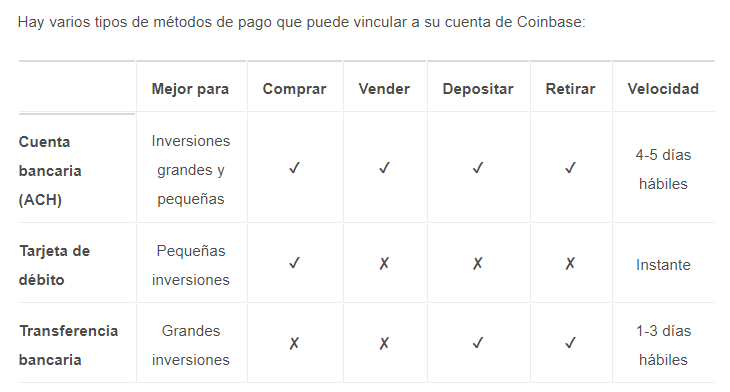
Let’s continue! We’ve created our account and now we’re going to transfer money to it so we can have funds available to buy bitcoins. On the Coinbase main panel, you will see the option “Add a payment method,” and there you will see the two payment methods: bank account and debit/credit card.
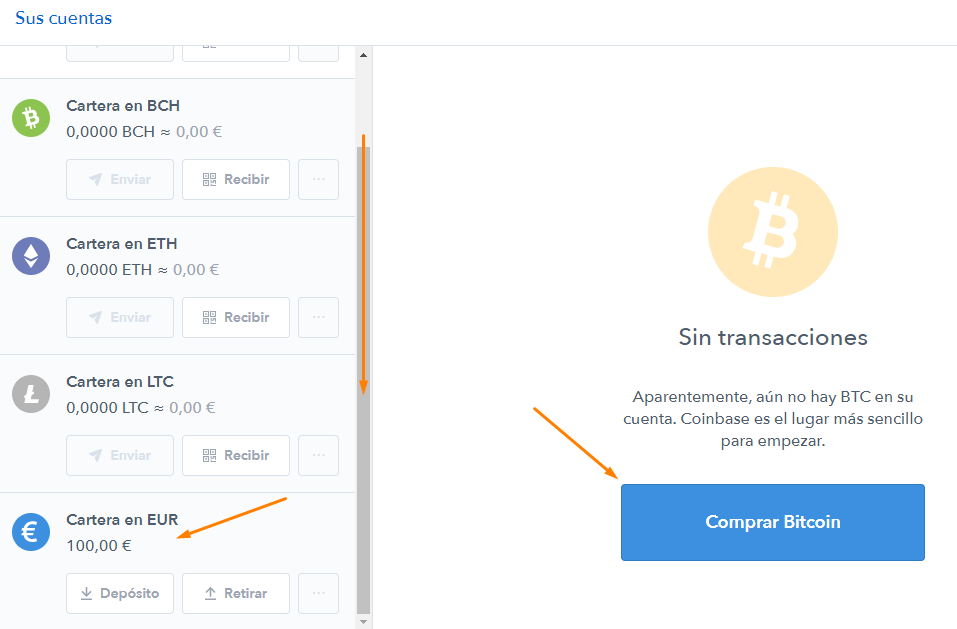
Once the funds are in our Coinbase account, we go to the “Accounts” section and scroll down until we see our “euro wallet” (or dollar wallet, if applicable). There you will see the money you deposited. On the right, you will see the option “Buy bitcoins,” which will take you to the Buy/Sell section:
And this is where the most anticipated moment arrives. You now have a wallet, you have funds, and now you are going to buy bitcoins. In this tab, you will see the price at which bitcoin is trading. We select the payment method (the wallet where we have the funds) and the amount. With the “Buy Max” button, we can select the maximum possible purchase with the funds we have:

And that’s it! We now own 0.0148 bitcoins.
Now, when placing an order at Genericos Omega, when we select the option to pay in bitcoins, we will see something like this:
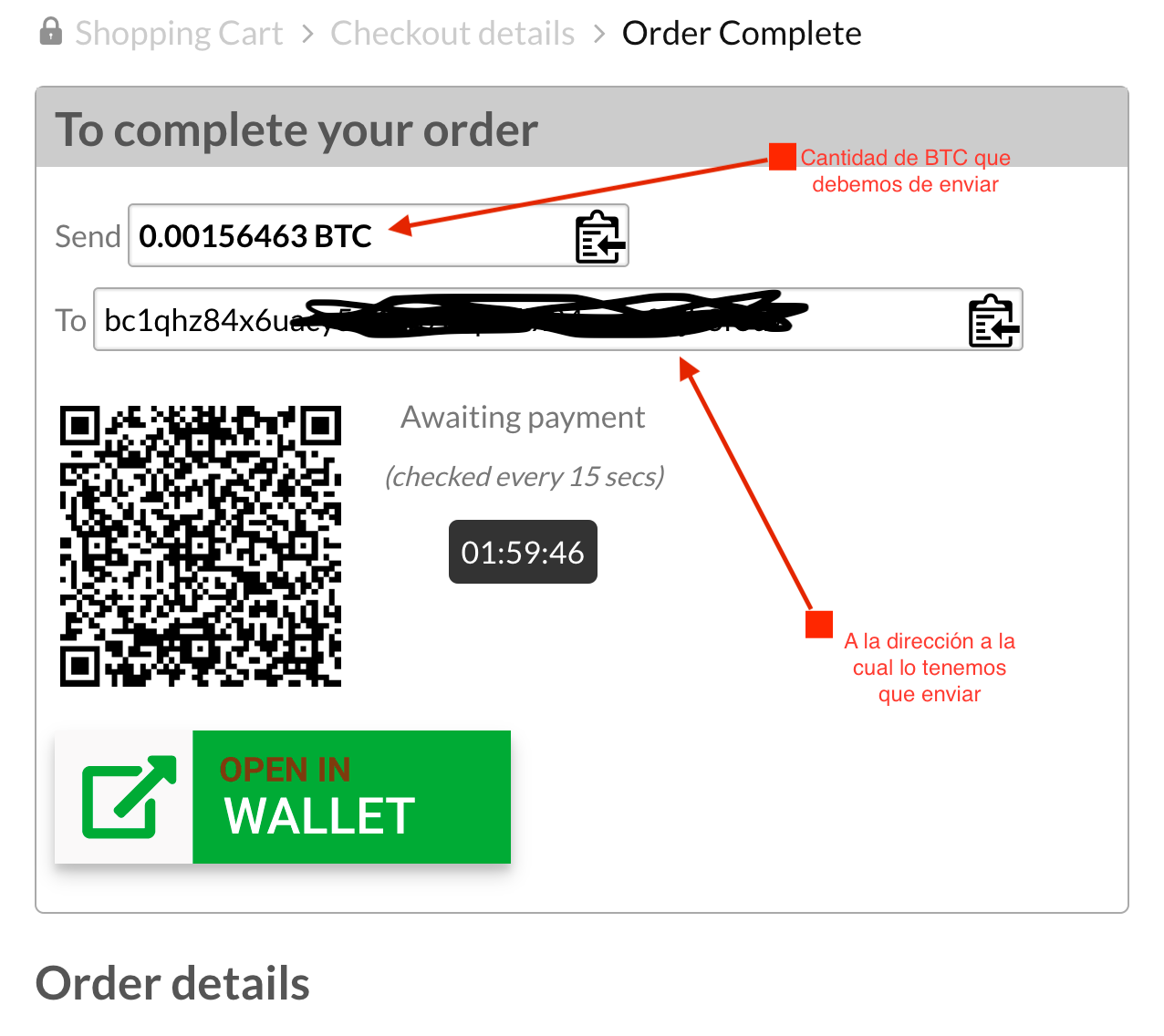
The amount we have to send via BTC (0.00156463 BTC) has already been reduced by 20% (the discount for choosing this payment method).
We copy the BTC address: bc1qhz84x6uacy….
And we go to our Coinbase account (to the accounts section) to send the 0.00156463 BTC to the address: bc1qhz84x6uacy….
We copy the amount and the address, click on “Continue” and that’s it! We have successfully paid for our order at HerpesMedsDirect with Bitcoins.